



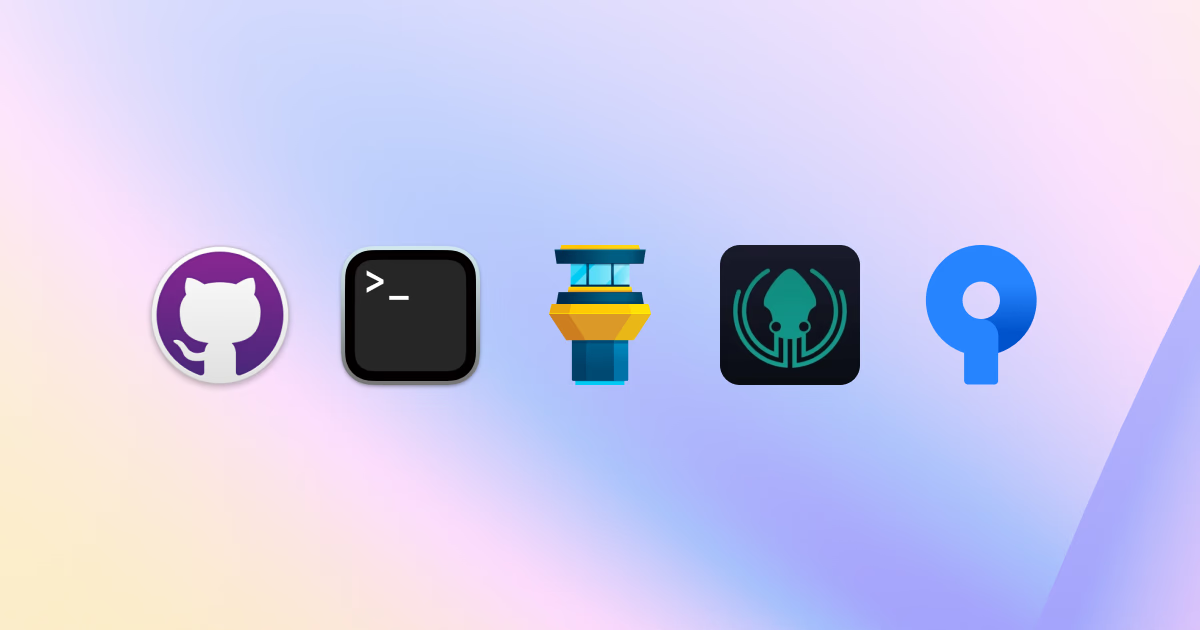
Git has become the backbone of modern software development, but working with it purely through the command line isn’t always the most efficient or comfortable experience—especially in large teams or complex repositories. That’s where Git clients come in: graphical tools that simplify version control, visualize changes, and streamline workflows.
Today’s Git clients are no longer just “GUI wrappers” around commands. They offer branching visualizations, merge conflict resolution tools, repository insights, and even integrations with CI/CD systems. But with so many options available, choosing the right one depends heavily on your workflow style and priorities.
Here’s a detailed comparison of the most popular Git clients in terms of productivity, usability, and real-world developer experience.
1. GitHub Desktop: Simplicity Above All
GitHub Desktop is designed for developers who want a clean, minimal, and beginner-friendly Git experience. Built by GitHub, it focuses on reducing Git complexity to the essentials.
Strengths:
- Extremely simple and intuitive interface
- Seamless integration with GitHub repositories
- Great for basic workflows: commit, push, pull, branch
- Low learning curve for beginners
Weaknesses:
- Limited advanced Git functionality
- Weak support for complex merge workflows
- Not ideal for large enterprise-scale repositories
Best for:
Beginners, solo developers, and teams heavily using GitHub.
GitHub Desktop is less about power and more about removing friction. It’s the “safe default” Git client.
2. Sourcetree: Feature-Rich and Visual
SourceTree is a powerful Git client developed by Atlassian. It’s known for its detailed visualizations and deep Git feature support.
Strengths:
- Excellent branch and commit graph visualization
- Strong support for complex Git operations
- Works well with Bitbucket and Git workflows
- Free and widely used in enterprise environments
Weaknesses:
- Can feel heavy and slightly cluttered
- UI is less modern compared to newer tools
- Occasional performance issues with large repositories
Best for:
Developers who want a full-featured visual Git experience without switching to paid tools.
Sourcetree shines in environments where understanding branch structure is more important than speed.
3. GitKraken: Modern UI Meets Productivity
GitKraken is a modern Git client focused on usability, speed, and visual clarity. It is built by the company also known as GitKraken.
Strengths:
- Beautiful, modern interface
- Excellent merge conflict visualization
- Built-in task tracking and issue integration
- Strong cross-platform support
Weaknesses:
- Some features require a paid plan
- Can feel slightly over-engineered for simple workflows
- Requires login for full functionality
Best for:
Professional developers and teams who want a polished, productivity-focused Git experience.
GitKraken stands out for making complex Git operations visually intuitive.
4. Fork: Fast, Lightweight, and Developer-Centric
Fork is a fast-growing Git client known for its speed and clean design. It is developed by Fork (commonly associated with the Fork app brand ecosystem).
Strengths:
- Extremely fast and responsive UI
- Clean, distraction-free interface
- Strong diff and merge tools
- Supports advanced Git workflows without clutter
Weaknesses:
- Smaller ecosystem compared to GitKraken or Sourcetree
- Limited built-in integrations
- macOS and Windows focus (less universal tooling)
Best for:
Developers who want a fast, no-nonsense Git client that still supports advanced workflows.
Fork is often chosen by developers who prefer performance over feature bloat.
5. Tower: Power User’s Git Workstation
Tower is a premium Git client built by fournova. It is designed for professionals who want deep Git control with a polished interface.
Strengths:
- Very powerful Git feature set
- Excellent support for advanced workflows (rebasing, cherry-picking, etc.)
- Clean, professional UI
- Strong documentation and onboarding
Weaknesses:
- Paid software (no full free tier)
- Slightly steep learning curve
- Less popular in open-source communities
Best for:
Professional developers and teams who work heavily with advanced Git operations.
Tower feels like a “pro workstation” rather than a lightweight tool.
6. Command Line Git: Still the Ultimate Baseline
While not a GUI client, it’s impossible to ignore Git itself when comparing productivity tools.
The CLI remains the most powerful and flexible way to use Git. Every GUI tool ultimately translates actions into CLI commands under the hood.
Strengths:
- Maximum control and flexibility
- Universally available across environments
- Best for automation and scripting
- No abstraction layer
Weaknesses:
- Steep learning curve
- Harder to visualize branch structures
- More prone to human error in complex workflows
Best for:
Advanced developers, DevOps engineers, and anyone working in server or terminal-first environments.
Many experienced developers use both CLI and GUI tools depending on context.
Key Comparison: What Actually Matters
When comparing Git clients, the differences come down to five core dimensions:
1. Ease of Use
- GitHub Desktop leads for simplicity
- GitKraken and Tower offer guided but powerful UX
2. Visual Understanding
- Sourcetree excels in branch visualization
- GitKraken provides the most modern visual experience
3. Speed and Performance
- Fork is the fastest overall
- CLI is instant but less visual
4. Feature Depth
- Tower and Sourcetree offer the most advanced Git operations
- GitHub Desktop is intentionally limited
5. Workflow Integration
- GitHub Desktop → GitHub-centric workflows
- Sourcetree → Bitbucket/Atlassian ecosystems
- GitKraken → multi-platform DevOps workflows
Productivity Perspective: Which One Should You Actually Use?
There is no universal “best” Git client, but there are clear patterns based on developer needs:
- If you want simplicity → GitHub Desktop
- If you want visual control → Sourcetree
- If you want modern UX + team workflows → GitKraken
- If you want speed and focus → Fork
- If you want enterprise-level power → Tower
- If you want full control → Git CLI
In practice, many developers end up using a combination of CLI and one GUI tool depending on task complexity.
The Bigger Trend: Git Clients Are Becoming Workflow Tools
Modern Git clients are no longer just interfaces for version control. They are evolving into broader development workflow platforms.
We’re seeing:
- Integration with issue tracking systems
- Built-in code review tools
- Conflict resolution assistants
- Visual history exploration
- AI-assisted commit message generation (in newer tools)
This reflects a larger shift: developers are no longer just managing code changes—they are managing systems of change.
Conclusion
Git clients vary widely in philosophy. Some prioritize simplicity, others prioritize power, and others focus on visual clarity or speed. The “best” choice depends entirely on how you work.
What’s clear is that Git itself is no longer just a command-line tool—it’s an ecosystem of workflows, and Git clients are becoming the interface layer that defines how developers interact with that ecosystem.
The real productivity gain doesn’t come from picking the most powerful tool. It comes from choosing the one that removes friction from your specific workflow—and then sticking with it long enough to build mastery.




Comments are closed